
First, start off with a brick:
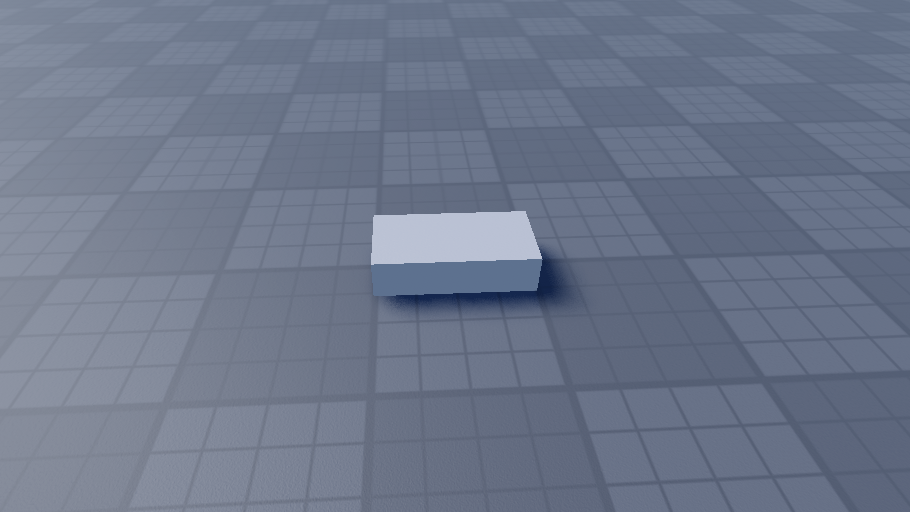
Then click the + on the part you want the text on:

Then look for SurfaceGui, when you have clicked it use the + on the SurfaceGui:
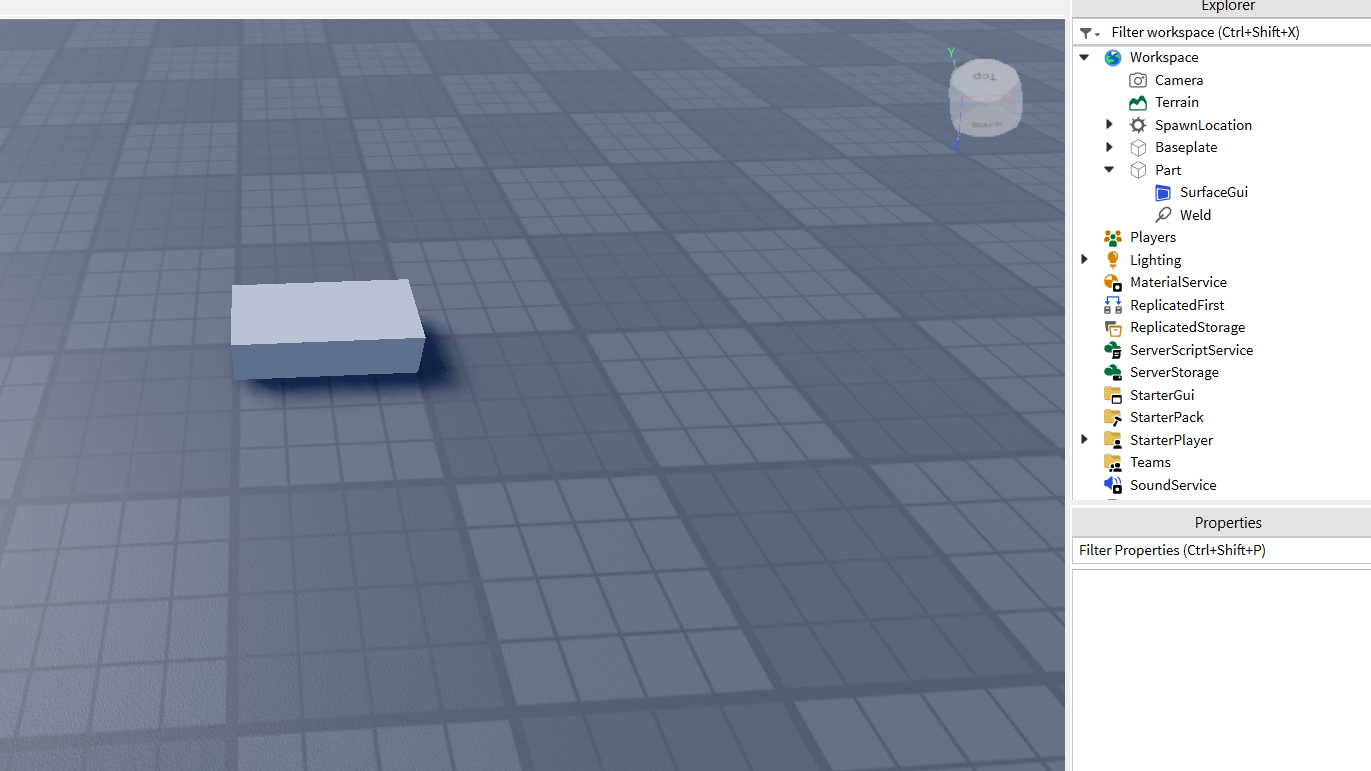
Then you look for TextLabel:

There we go there’s the label on the brick:

Now I’ll show you how to move it.
The next step is get properties out and select SurfaceGui then scroll down until you see “Face”:
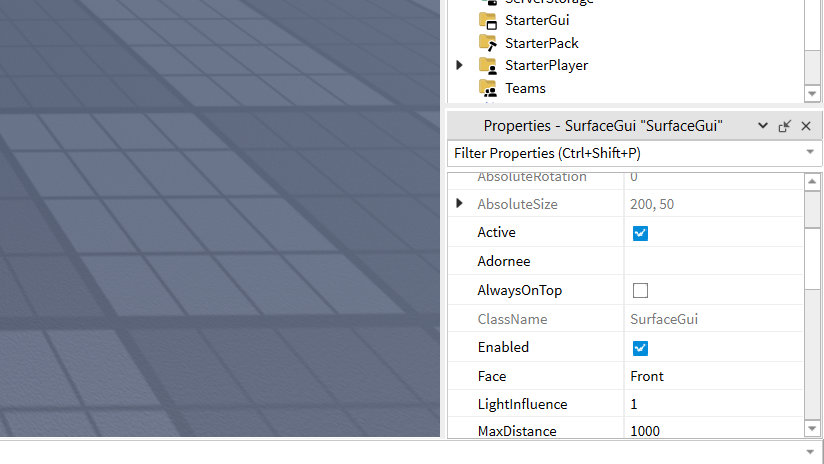
Then you click it then you see loads of options as seen below:

Then choose bottom:

Then choose PixelsPerStud to 100:

Select TextLabel then scroll down in Properties to rotation then set to 90:
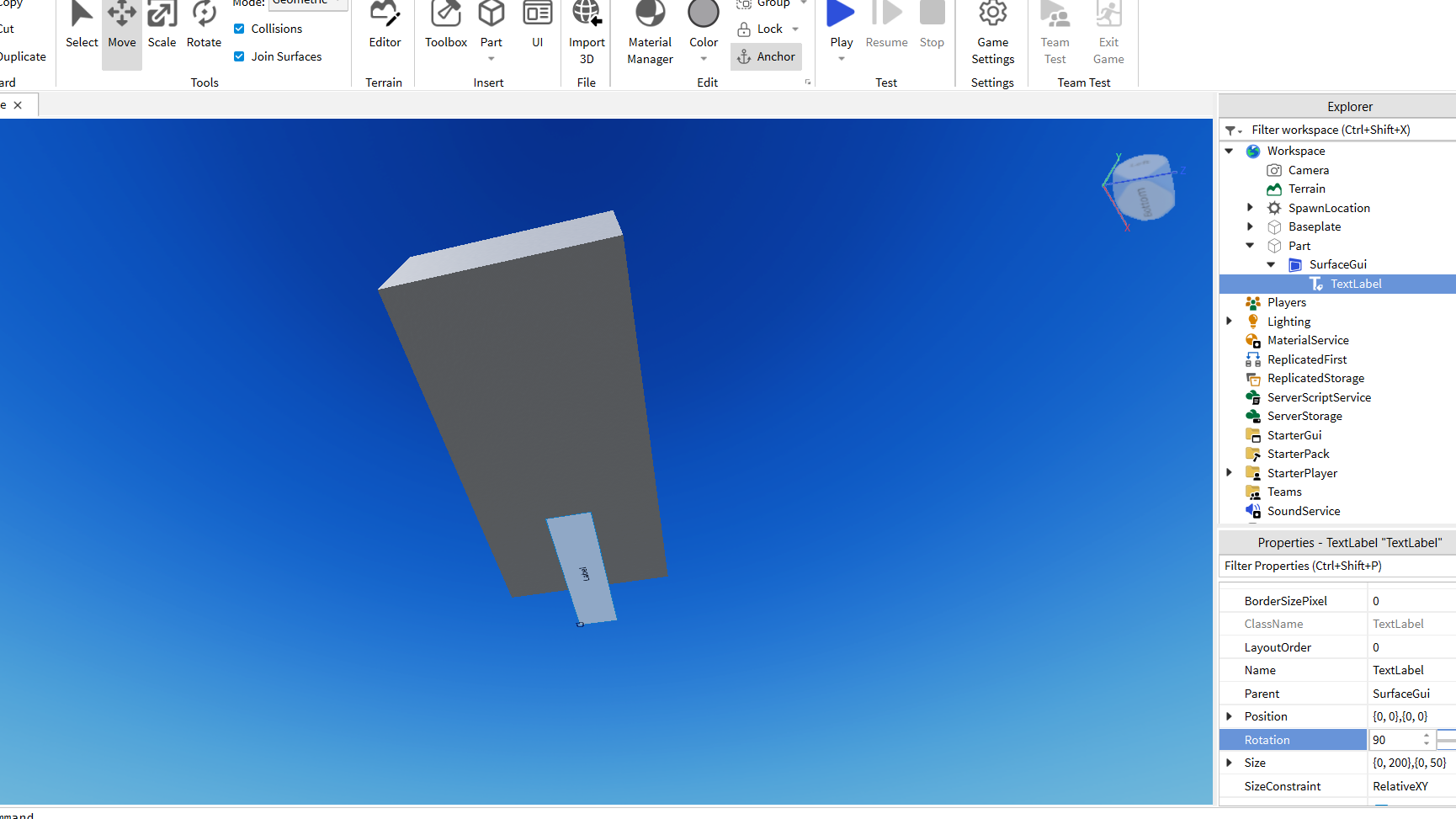
Set position on {0,0},{0,150}:

Scroll down to Text then change it to what you want, oh wait hold on I missed a step turn on TextScaled:

And there you go that’s how you do it, if you want the block and the background text to be transparent go all the way up to the top in Properties on TextLabel then scroll down a little and you will see BackgroundTransparency turn it all the way up and this will happen:

Then go onto the part and turn Transparency all the way up tool:

And there you have it, a word in Roblox, and you could put it in a sentence as well or put it over someone’s head like I did:

 Just Talon
Leave a comment